
Guide
Geode Launcher Settings Explained: Every Switch That Matters
Auto launch, framerate caps, screen zoom, themes and update checks: the launcher settings page translated into plain decisions.
CONTENTS On this page
The launcher's settings page is short, but every row earns its place. This guide walks it top to bottom, as configured on the rack behind Geode, so you can set it once and forget it exists.
General and gameplay
Theme picks light, dark or system for the launcher itself. Automatic launch starts the game shortly after you open Geode, erasing the two-app feeling; enable it once your setup is stable. Display mode and screen zoom shape the game window: zoom below 1.00x helps on phones where the game crowds the edges.
The framerate cap
Limit max framerate is the quietly important one. Capping frames can calm a hot phone and steady performance in heavy levels; our framerate guide covers choosing a number. Leave it disabled if your phone runs cool and smooth.
Updates
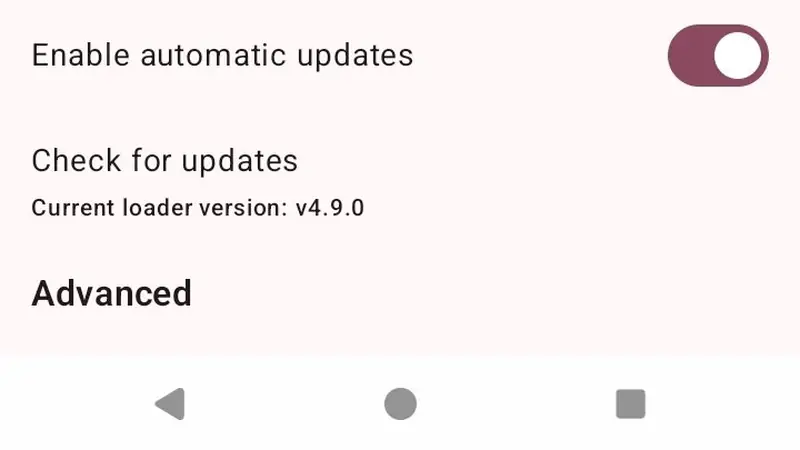
Enable automatic updates and let the framework keep itself current. Modding lives and dies by version harmony between game, framework and mods, and this toggle is the harmony keeper. The Advanced section, logs and developer options, is for troubleshooting; on an ordinary day you will never need it. Set them once, and the Geode APK quietly disappears into your routine.
The Advanced corner, explained honestly
Most players never open Advanced, and that is fine, but knowing what lives there removes the fear of it. Application logs record what the launcher and framework did, session by session, which turns a vague complaint into a diagnosable event when something breaks. Developer options exist for mod makers testing their own builds, not for daily play, and changing rows you do not recognise rarely ends well.
If a support guide ever asks you to look in Advanced, it is almost always for the Geode APK About panel or the logs, and both are read-only errands. Everything performance-related lives higher up the page, in the rows this guide already covered. The Geode APK keeps its sharp tools in a drawer rather than on the counter, and that ordering is deliberate design, not hidden power waiting to be unlocked.
A five-minute settings audit worth repeating
Once a season, walk the settings page top to bottom with fresh eyes. Confirm automatic updates are still on, check the framerate cap still matches the phone you have now rather than the one you had in spring, and glance at display mode if you have changed devices or cases. Settings drift as phones and habits change, and the audit catches the drift before it becomes a symptom.
Two rows deserve a companion read while you audit. The cap rewards a dedicated look at when limiting FPS makes the game better, since the right number depends on your screen and your climate. The theme and zoom rows pair with Geode launcher themes and display settings, where the small window gets its full treatment. Finish the audit and the Geode APK returns to its best state: configured, current, and completely forgettable until the day it quietly saves your library again.
Quick Answers
Should automatic launch be on?
Yes, once your setup is proven stable. It makes opening Geode feel like opening the game.
What does screen zoom actually do?
It reduces the size of the game window inside the screen, which some phones and players prefer.
Do launcher settings affect my game saves?
No. They shape the launcher and the game window, never your progress.